
OpenPaaS Log Analysis Guide
To help developers locate issues more conveniently, developers can obtain a game log instance via sud.getGameLogManager and report relevant game logs. The logs are aggregated and reported in real time to the OpenPaaS Management Backend. Developers can enter the log analysis page from the minigame management backend via "Basic Data -> Game Log Analysis" to view the relevant log information reported by the developer.
How to Use
Log Reporting Minigames can use the game log reporting functionality. You can learn about the interface's capabilities through sud.getGameLogManager. The following is an example of log reporting:
- Call sud.getGameLogManager to get a game log manager instance. To be compatible with older base library versions, it is recommended to wrap it with the following code when using the game log reporting functionality, for example wrapping the compatibility code in a local
gamelog.js:
let logger = null;
if (sud.getGameLogManager) {
  logger = sud.getGameLogManager({
    commonInfo: {
      version: "1.0.0",
      env: "prod"
    }
  });
}

export const gameLogAdaptor = {
  log() {
    if (!logger) console.log.apply(logger, arguments);
    logger.log.apply(logger, arguments);
  },
  tag() {
    if (!logger) return console;
    return logger.tag.apply(logger, arguments);
  },
  getCommonInfo() {
    if (!logger) return {};
    return logger.getCommonInfo.apply(logger, arguments);
  },
  updateCommonInfo() {
    if (!logger) console.log.apply(logger, arguments);
    logger.updateCommonInfo.apply(logger, arguments);
  }
};
}- Print relevant logs at appropriate locations in the game logic
import { gameLogAdaptor } from "./gamelog.js"; // Reference the gamelog.js file above; the exact path depends on the game implementation

// Use the tagged reporting method to report logs
const cacheLogger = gameLogAdaptor.tag("cache"); // Used for cache-related log reporting
cacheLogger.warn("cache not found", { key: "tableCache" }); // Report a warn-level log

// Report logs directly with the log method
gameLogAdaptor.log({
  level: "info",
  key: "login",
  value: { loginTime: "131548434545" }
});
How to View / Analyze Logs
Log in to the OpenPaaS Management Backend and enter the game log analysis page via "Basic Data -> Game Log Analysis."
Developers can perform operations such as filtering and aggregation on game logs; use visual views to observe the distribution and trends of data dimensions; and view detailed reported information of relevant logs through data tables, with the ability to drill down and view all game log information within a single game lifecycle of a user. See the documentation below for specific usage.
Game Log Filtering
Developers can use the capabilities provided in the log filtering area to query log information for specific conditions by selecting filter conditions such as the specific protocol, OpenID, date range, and metric/dimension filters.
Special Notes
- Currently only three protocols are available: minigame gift pack delivery, game real-time logs, and iOS memory abnormal exit. To view game log information reported by developers themselves, please select the game real-time logs protocol.
- OpenID: OpenID is the unique identity identifier of a minigame user. You can use OpenID to filter data generated by a specific user.
- Filter conditions: each protocol supports filtering by different data dimensions. A single-dimension filter condition consists of three parts (dimension, operator, content). All operators supported by the platform are as follows:
| Operator | Meaning |
|---|---|
| equal | Checks whether two values are equal |
| like | Checks whether a string contains another string |
| like pattern | Checks a string using pattern matching, usually supporting wildcards (such as % and _) |
| empty | Checks whether a string is empty (i.e., length 0) |
| match | Uses a regular expression to check whether a string matches a specific pattern |
| range | Checks whether a number is within a specified range |
| not equal | Checks whether two values are not equal |
| is null | Checks whether a value is null |
| not null | Checks whether a value is not null |
| includes | Checks whether a value is contained in a set or array |
| excludes | Checks whether a value is not in a set or array |
| length | Checks whether the length of a string meets a specific condition |
| array_has | Checks whether an array contains at least one element |
Different data dimensions support different operators depending on their data characteristics. Please refer to the available operators displayed on the page.
Distribution and Trends The Distribution and Trends module consists of a distribution statistics pie chart and a trend statistics line chart. Developers can use this area to view the distribution proportions of metrics as well as the trend changes/comparison statistics of metrics Note: this module is collapsed by default. To view it, click the "Expand Distribution/Trends" button to expand it
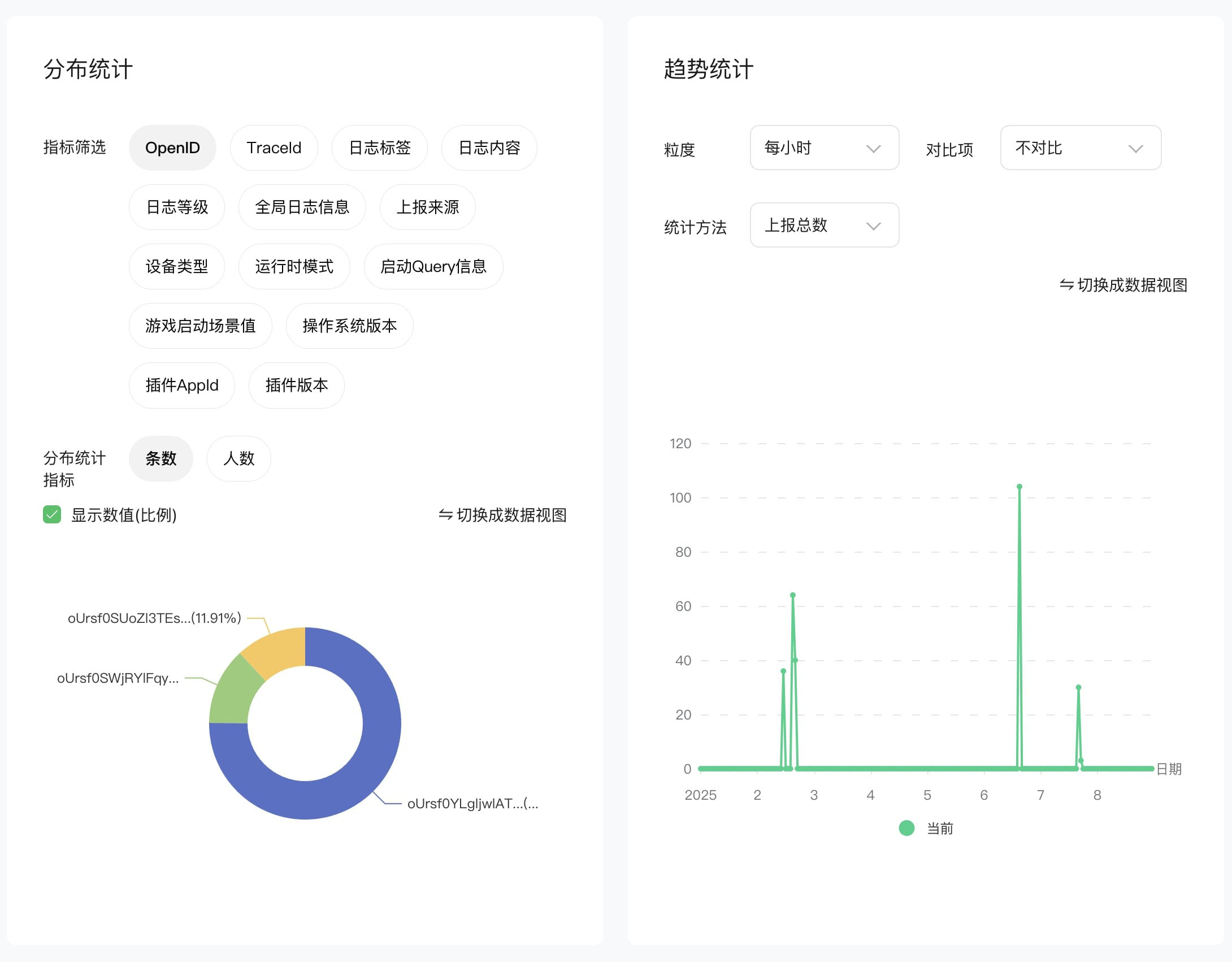
Distribution Statistics Pie Chart Developers can use the distribution statistics pie chart to view the distribution of each dimension value, and by clicking a pie sector, quickly add a filter condition for the value corresponding to that sector to further analyze the data of the corresponding dimension value. Trend Statistics Chart The trend statistics line chart shows by default the data volume change trend of the current protocol over a past period. Developers can set the time granularity, comparison items, and statistical methods of the trend chart through the filter condition area above the trend statistics. Special Notes
- Time granularity: the maximum granularity is day, and the minimum granularity is second (within 1 hour).
- Comparison items: comparison by time (number of days) or by dimension is supported.
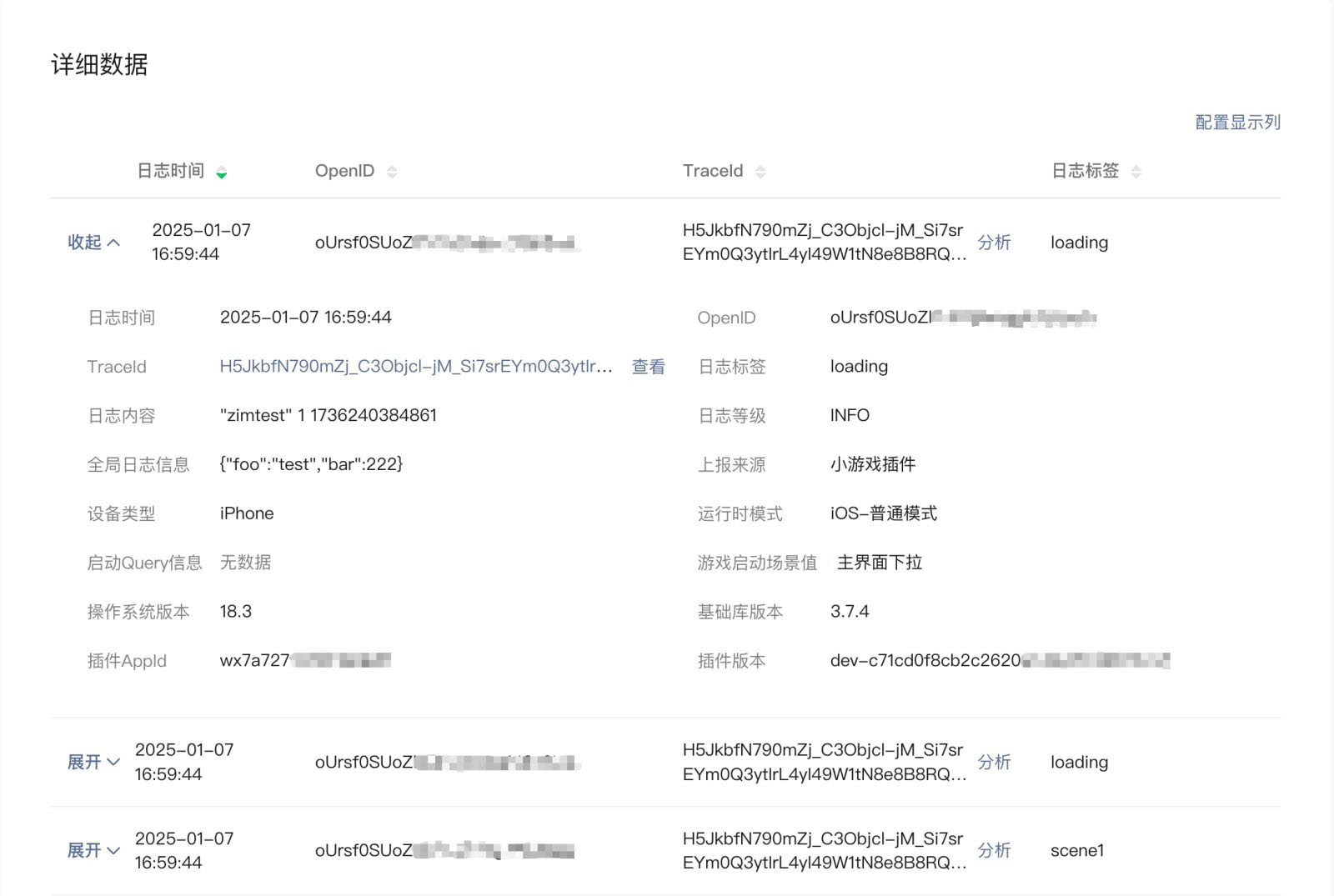
- Statistical methods: for dimensions whose data type is numeric, multiple statistical methods such as sum, max/min, and quantiles are supported. Detailed Log Data The detailed log data area displays the detailed log information of the current protocol, as shown below:
Special Notes
- Each log entry in the list displays the detailed values of each dimension under the current protocol. The table provides capabilities such as sorting dimensions and unit conversion, and when there are too many dimensions, developers can view the complete dimension data by sliding the table left and right or clicking the expand button.
- By default, a protocol only displays some dimension columns. Developers can customize the dimension columns to display via the "Configure Display Columns" button in the top-right corner of the table according to their own needs (custom settings are cached and do not need to be set repeatedly).
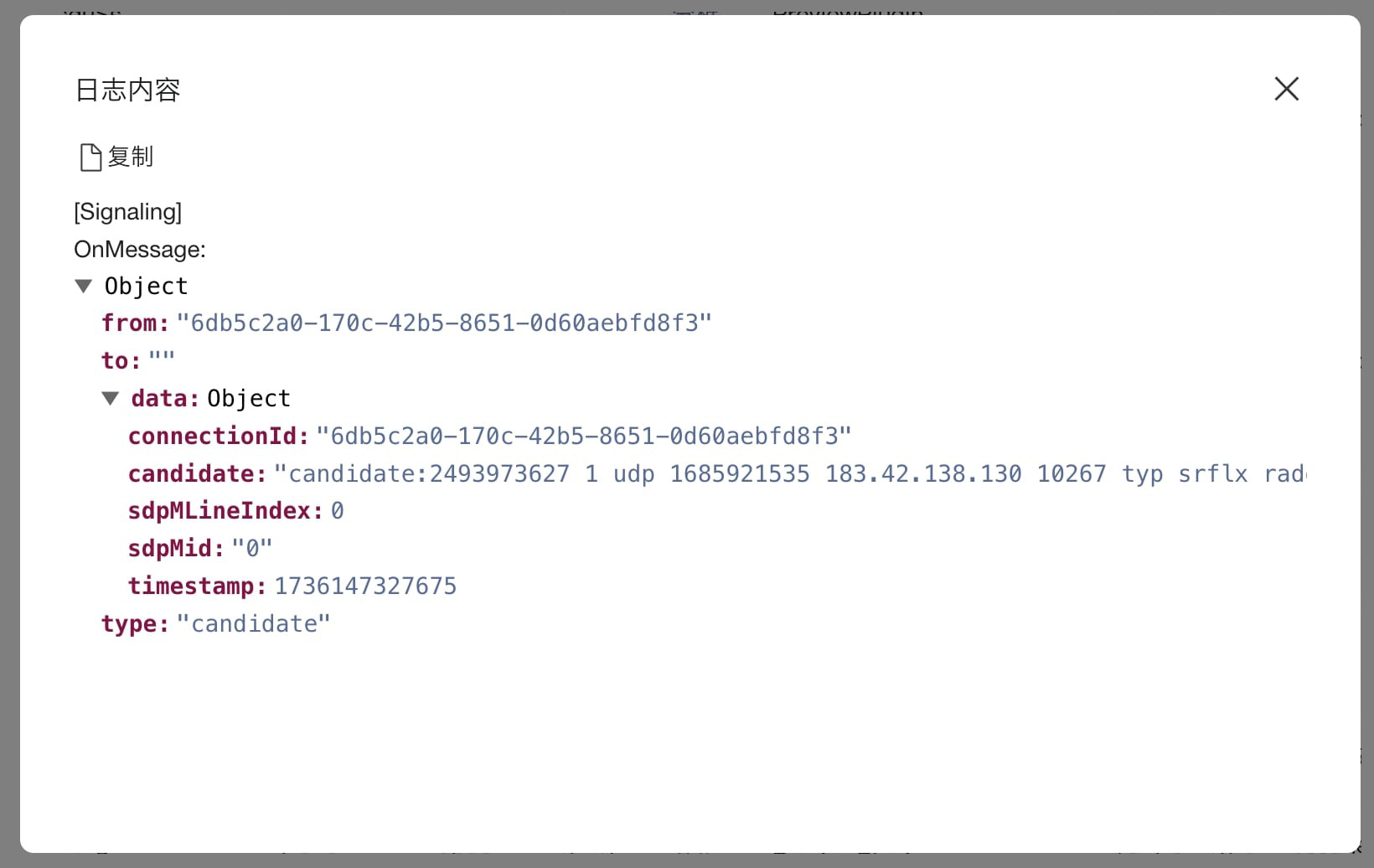
- When a dimension value is too long, a "View" button is displayed after the corresponding dimension value. Developers can click the button to view the complete data of the dimension value. If the dimension value is in JSON format, developers can format the data via the "Format" button.
Analyzing Logs of a Single Lifecycle For log data reported within a single lifecycle, the TraceId analysis feature is designed for the TraceId dimension (the unique identifier of a minigame instance) of the minigame game log reporting protocol. Click the "Analyze" button after the TraceId data in the details data table to enter the TraceId analysis mode.
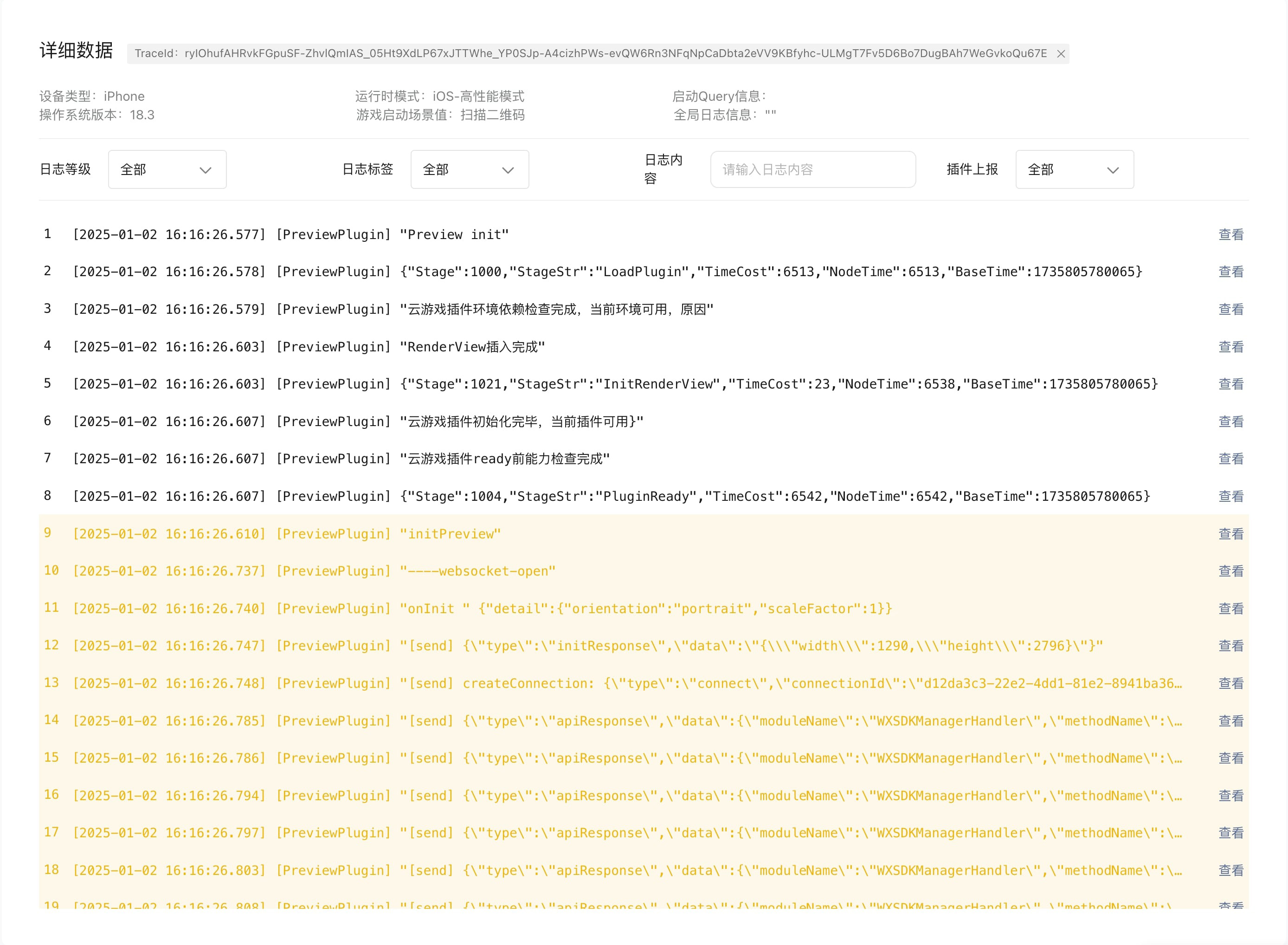
The top of the page displays the common information in the currently associated log information, such as device type, base library version, runtime mode, and the commonInfo reported by the developer. Developers can use the capabilities of the log filtering area to filter the log information within the current lifecycle Special Notes
- Log information is displayed in ascending order of reporting time. The log content format is as follows: [time] [key] [logInfo].
- Logs of different levels are distinguished by different background colors.
| Level | Background Color |
|---|---|
| info | White |
| warn | Yellow |
| error | Red |
| debug | Blue |
- If a log is reported by a plugin, a "Reported by Plugin" tag is displayed on the right side of the log information.
