
Bluetooth Low Energy (BLE)
Bluetooth Low Energy is a protocol supported since Bluetooth 4.0. Compared with Classic Bluetooth, it has extremely low power consumption and faster transmission speed, but transmits smaller amounts of data. It is commonly used in various smart electronic products that have high battery-life requirements and only need to transmit small amounts of data, such as smart wearable devices, smart home appliances, and sensors, with a wide range of application scenarios.
1. Roles / Working Modes
The Bluetooth Low Energy protocol defines several roles, or working modes, for devices. Bluetooth currently supports the following:
1) Central Device / Host (Central)
A central device can scan for peripheral devices, and after discovering a peripheral device, establish a connection with it, and then use the services (Service) provided by the peripheral device.
Generally, a phone plays the role of the central device, processing or displaying the data provided by the peripheral device. The Bluetooth Low Energy APIs default to setting the phone as the central device.
2) Peripheral Device / Slave (Peripheral)
A peripheral device is always in a broadcasting state, waiting to be searched for and connected by a central device, and cannot actively initiate a search. Examples include smart bands, sensors, and other devices.
If a peripheral device is set to a non-connectable state while broadcasting, it is also called a broadcast mode (Broadcaster).
Note
In use, a Bluetooth device can be in both host and slave modes at the same time. On Android devices, you only need to initialize the Bluetooth adapter once; on iOS devices, you need to use two different mode parameters to initialize the central device's and the peripheral device's Bluetooth adapters respectively. It is recommended to uniformly perform a separate initialization for host and slave modes respectively.
2. Communication Protocol
After two Bluetooth Low Energy devices establish a connection, the data exchange between them is based on the GATT (Generic Attribute Profile) specification. According to this specification, individual profiles (Profile) can be defined to describe the services (Service) provided by the Bluetooth device.
In the entire communication process, there are several most important concepts:
- Profile: A Profile is a collection of Services predefined by the Bluetooth standard, and does not actually exist in the Bluetooth device. If Bluetooth devices are to be compatible with each other, they only need to support the same Profile. A Bluetooth device can support multiple Profiles.
- Service: A Service is a service that a Bluetooth device provides externally. A device can provide multiple services, such as a battery information service, a system information service, etc. Each service is uniquely identified by a UUID.
- Characteristic: Each Service contains 0 to many Characteristics. For example, the battery information service will have a Characteristic representing the battery data. A Characteristic consists of a value and 0 to many Descriptors. When communicating with a Bluetooth device, it is mainly accomplished by reading and writing the value of a Characteristic. Each Characteristic is uniquely identified by a UUID.
- Descriptor: A Descriptor is a defined attribute that describes a characteristic value. For example, a Descriptor can specify a human-readable description, the value range of a characteristic value, or a unit of measurement specific to a characteristic value. Each Descriptor is uniquely identified by a UUID.
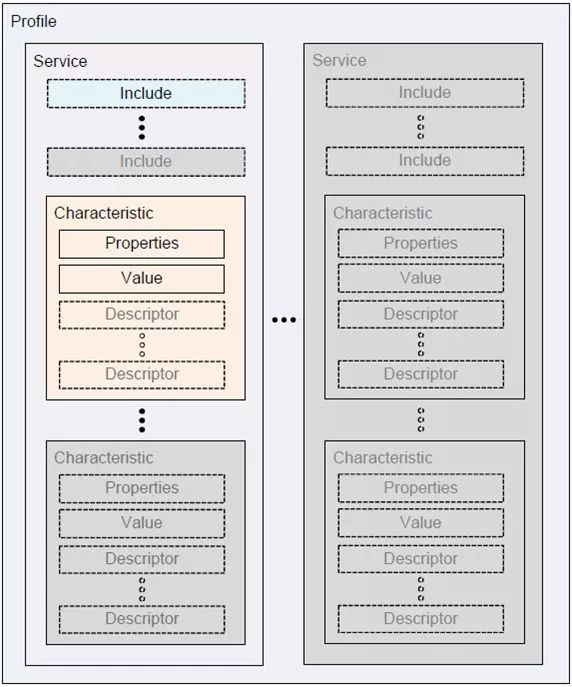
As shown in the figure below, we can simply understand it as: each Bluetooth device may provide multiple Services, each Service may have multiple Characteristics, and we can achieve the purpose of communicating with the Bluetooth device by reading and writing the value of the corresponding Characteristic according to the Bluetooth device's protocol.
3. UUID (Universally Unique Identifier)
According to the Bluetooth 4.2 protocol specification (Vol 3, Part B, section 2.5.1 UUID), a UUID is a 128-bit unique identifier, used to identify Services, Characteristics, etc.
To reduce the burden of storing and transmitting 128-bit UUID values, the Bluetooth SIG pre-allocated a batch of UUIDs. This batch of UUIDs has a common part, called the Bluetooth Base UUID, i.e. 00000000-0000-1000-8000-00805F9B34FB. Therefore, the pre-allocated UUIDs can also be represented using 16 bits or 32 bits, of which the 16-bit UUID is the most commonly used. Using 16/32-bit UUIDs can reduce the storage and transmission load. Developer-defined UUIDs should note that they must not conflict with the pre-allocated UUIDs.
iOS supports directly using 16-bit and 128-bit UUIDs;
Starting from Android version 8.0.9, directly using 16/32/128-bit UUIDs is supported;
On Android versions below 8.0.9, only 128-bit UUIDs are supported, and developers need to manually pad them to 128 bits. The padding method is as follows:
text128-bit UUID = 16-bit UUID * 2^96 + Bluetooth Base UUID 128-bit UUID = 32-bit UUID * 2^96 + Bluetooth Base UUIDFor example:
text0x180F -> 0000180F-0000-1000-8000-00805F9B34FB
The return values of all APIs are uniformly 128-bit UUIDs.
4. Usage Flow for the Central Device
4.1 Initialize the Bluetooth Module
Before using the Bluetooth APIs, you must first initialize the Bluetooth adapter module. Other APIs can only be called after initialization succeeds.
When the Bluetooth switch is not turned on or the phone does not support Bluetooth, an error is returned. At this point, the Bluetooth module has already been initialized; you can listen for changes in the phone's Bluetooth state, and you can also call all of the Bluetooth module's APIs. During development, developers should consider handling the case where the user turns the Bluetooth switch on/off during use, and provide the necessary prompts to improve usability.
4.2 Scan for and Discover Bluetooth Peripheral Devices
After the Bluetooth module is successfully initialized, you generally need to scan for peripheral devices via Bluetooth. When a Bluetooth peripheral device is scanned, a callback event is generated, returning the scanned device. Scanning for devices is relatively resource-intensive; please call stop searching promptly after finding the required device.
If you have previously connected to a device and obtained its deviceId, you can skip the scanning step.
// Listen for the new device found event

sud.onBluetoothDeviceFound((res) => {

  res.devices.forEach((device) => {

    // Some filtering can be done here

    console.log('Device Found', device)

  })

  // After finding the device you want to search for, stop scanning promptly

  sud.stopBluetoothDevicesDiscovery()

})


// Initialize the Bluetooth module

sud.openBluetoothAdapter({

  mode: 'central',

  success: (res) => {

    // Start searching for nearby Bluetooth peripheral devices

    sud.startBluetoothDevicesDiscovery({

      allowDuplicatesKey: false,

    })

  },

  fail: (res) => {

    if (res.errCode !== 10001) return

    sud.onBluetoothAdapterStateChange((res) => {

      if (!res.available) return

      // Start searching for nearby Bluetooth peripheral devices

      sud.startBluetoothDevicesDiscovery({

        allowDuplicatesKey: false,

      })

    })

  }

})
4.3 Connect to a Device
For two Bluetooth Low Energy devices to communicate, a connection must first be established.
sud.createBLEConnection({

  deviceId, // The deviceId of the scanned device

  success: () => {

    // Connection succeeded, get the services

    sud.getBLEDeviceServices({

      deviceId,

    })

  }

})
4.4 Get the Services of the Bluetooth Peripheral Device
sud.getBLEDeviceServices({

  deviceId, // The deviceId of the scanned device

  success: (res) => {

    for (let i = 0; i < res.services.length; i++) {

      if (res.services[i].isPrimary) {

        // Based on your specific business needs, choose a primary service to communicate with

      }

    }

  }

})
4.5 Read and Write the Characteristic Values of a Service
sud.getBLEDeviceCharacteristics({

  deviceId, // The deviceId of the scanned device

  serviceId, // A service found in the previous step

  success: (res) => {

    for (let i = 0; i < res.characteristics.length; i++) {

      let item = res.characteristics[i]

      if (item.properties.write) { // This characteristic value is writable

        // This example sends a hexadecimal data of 0x00 to the Bluetooth device

        // In actual use, data should be sent according to the specific device protocol

        let buffer = new ArrayBuffer(1)

        let dataView = new DataView(buffer)

        dataView.setUint8(0, 0)

        sud.writeBLECharacteristicValue({

          deviceId,

          serviceId,

          characteristicId: item.uuid,

          value: buffer,

        })

      }

      if (item.properties.read) { // This characteristic value is readable

        sud.readBLECharacteristicValue({

          deviceId,

          serviceId,

          characteristicId: item.uuid,

        })

      }

      if (item.properties.notify || item.properties.indicate) {

        // You must first enable sud.notifyBLECharacteristicValueChange to be able to listen for the device's onBLECharacteristicValueChange event

        sud.notifyBLECharacteristicValueChange({

          deviceId,

          serviceId,

          characteristicId: item.uuid,

          state: true,

        })

      }

    }

  }

})

// Listen before operating, to ensure data is obtained at the earliest possible time

sud.onBLECharacteristicValueChange((result) => {

  // After finishing use, disconnect and close the Bluetooth adapter at an appropriate time

  sud.closeBLEConnection({

    deviceId,

  })

  sud.closeBluetoothAdapter({})

})
4.6 Disconnect and Close the Bluetooth Adapter
After finishing use, you should disconnect at an appropriate time and close the Bluetooth adapter.